
Apple Games in 2026: How to Find Games, Track Achievements and Play with Friends on iPhone
Apple Games has changed how iPhone owners find, organise and enjoy mobile games. Introduced with iOS 26, the dedicated app brings previously downloaded titles, personalised recommendations, Game Center achievements and multiplayer activities into one convenient location. Rather than searching through different screens to check scores or find something new to play, users can manage much of their gaming activity from a single app. In 2026, Apple Games also makes social gaming more accessible, allowing friends to compare results, participate in challenges and discover titles they can enjoy together. Understanding its main features helps users make better use of their existing game collections without unnecessary downloads or additional subscriptions.
Finding New Games and Managing Your Collection in Apple Games
Apple Games is included with iOS 26 and later compatible versions, although it can also be downloaded from the App Store where available. After opening the app, users can sign in with their Apple Account and configure Game Center, Apple’s service for gaming profiles, achievements and social activities. The main interface is divided into several sections, including Home, Arcade, Friends and Library, alongside a search function. Each serves a different purpose: Home highlights recommendations and recent activity, Arcade presents subscription games, Friends handles social connections, and Library provides access to previously downloaded titles. These sections make navigating a large collection considerably easier than searching individually through Home Screen folders.
The Home tab is particularly useful for finding games that match personal interests. Recommendations take account of previously played titles, gaming activity and, where relevant, games enjoyed by friends. Users can browse new releases, popular titles and editorial collections selected by Apple. For example, someone interested in strategy games may encounter titles such as Mini Motorways, while players who prefer adventure games can explore recommendations related to their existing collection. The Continue Playing area provides a shortcut to recently played games, reducing the need to remember where individual apps are stored. Game pages also highlight recent updates, special events and relevant Game Center features, helping players decide whether a title deserves their attention.
Searching for a specific game is straightforward. Open Apple Games, select Search and enter the title or browse the available categories, including action, adventure, racing and puzzles. Selecting a result displays information about the game, including its description, age rating, achievements and controller compatibility where supported. Players can tap Get to download a free game or select the displayed price for a paid title. Authentication may be required before completing a download or purchase. Additional details, including customer reviews and privacy information, are available through the game’s App Store listing. Importantly, Apple Games does not make every title free: purchases and optional in-app transactions remain subject to the individual game’s conditions.
Using Library, Apple Arcade and Personalised Recommendations
The Library tab helps users revisit games they downloaded previously, even if those titles are no longer installed on their iPhone. Under Your Games, players can browse their collection and select an available title to play or download again. This is useful when replacing an older device, returning to a forgotten favourite or freeing storage space without permanently abandoning a game. Previously purchased titles can generally be downloaded again without paying for the same purchase, provided they remain available and compatible with the device and account. However, restoring a game’s previous progress depends on whether it supports cloud saves, account synchronisation or another method of transferring saved data.
Library management also becomes more practical when a collection contains dozens of games. Users can apply filters to narrow the results by characteristics such as installed titles, Apple Arcade membership, controller support and games with supported social features. Sorting options help locate frequently played titles or identify games by name. To find only games currently stored on the iPhone, use the On This iPhone filter where available. Players who need additional storage can remove games they no longer use and download eligible titles again later. Before deleting a game, however, checking whether progress is backed up is important because some titles store essential save data locally rather than synchronising it automatically.
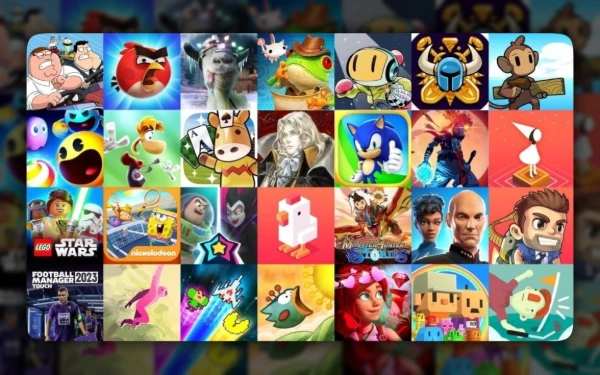
Apple Arcade provides another way to expand a game collection. The subscription offers access to hundreds of games without advertisements or in-app purchases within its included titles. Its catalogue covers different genres and includes games such as Sneaky Sasquatch, Hello Kitty Island Adventure and Mini Motorways. Subscribers can browse Arcade games through the dedicated tab and access relevant titles from Library. Unlike standard App Store purchases, access to subscription games generally depends on maintaining an active Apple Arcade or eligible Apple One subscription. Availability can also differ between regions and devices. For occasional players, the distinction matters: individually purchased games and subscription titles have different payment arrangements, even though both can appear within Apple Games.
Tracking Achievements, Scores and Gaming Progress
Game Center achievements provide a way to measure progress beyond simply completing a game. Developers can create objectives that recognise particular accomplishments, such as finishing a difficult level, collecting specific items, reaching a milestone or performing a challenging action. When a supported objective is completed, the corresponding achievement is recorded through Game Center. Apple Games brings these records into a more accessible interface, allowing users to revisit their accomplishments across compatible games. Not every game offers achievements, and the number and difficulty of available objectives depend on the developer. Some achievements can also remain concealed until players meet their requirements, preserving surprises during gameplay.
To check achievements on an iPhone, open Apple Games, select Library and navigate to Achievements. Choose a supported game to review completed objectives and any available progress towards unfinished ones. Achievement information may also appear on individual game pages. This makes it easier to identify remaining challenges without repeatedly opening several different games. Players who enjoy completing every objective can use these records to decide which titles deserve another session. Nevertheless, achievements are not a universal measure of skill: some recognise straightforward participation, while others demand considerable practice or precise timing. Their main value is providing additional goals and a record of personal accomplishments.
Leaderboards offer a different perspective by comparing scores with other players. In compatible games, they may display results from friends or a wider group of participants, depending on how the developer has configured the feature. A racing game might compare finishing times, while an arcade title could rank players by points earned during a particular challenge. Apple Games makes it easier to follow these comparisons and return to games when a friend exceeds a previous score. However, leaderboard support varies, and some titles manage their competitive rankings through separate in-game accounts. Users should therefore check the individual game’s details before expecting every score or achievement to appear automatically in their Apple Games profile.
Setting Up Game Center and Controlling Achievement Visibility
Game Center is closely connected with Apple Games, but the two serve different purposes. Apple Games is the app used to browse titles, access a collection and view gaming activity, while Game Center manages the underlying player identity and supported social features. When configuring Game Center for the first time, users can choose a nickname, personalise their avatar and decide who can see aspects of their activity. The nickname appears during supported multiplayer activities and score comparisons. Players should use the same Apple Account for Game Center and the App Store to maintain a consistent experience. Using different accounts can complicate access to existing achievements, friends and previously recorded activity.
Privacy settings are particularly important for users who prefer to keep their gaming habits separate from their wider social contacts. On iPhone, open Settings, navigate to Game Center and look for Activity Sharing. Apple provides options such as Everyone, Friends Only and Only You, allowing users to control the audience for information including recently played games and achievement progress. Some profile details, such as a Game Center nickname, avatar and scores, can still be visible to other Game Center users. Selecting a more restrictive sharing setting therefore does not necessarily make every aspect of gaming activity private. Reviewing these controls is worthwhile before accepting friend requests or participating in public competitions.
If achievements do not appear as expected, the first step is to confirm that the game supports Game Center achievements and that the correct Apple Account is signed in. It is also worth checking whether the game requires an internet connection to update its records. Some achievements may not be reported immediately, especially when a title has been played offline. Updating the game and iOS can resolve certain compatibility problems, although missing progress is not always recoverable. Games with their own account systems may maintain records separately from Game Center, so contacting the developer can be more useful than repeatedly reinstalling the app. Players should avoid deleting a game while troubleshooting until they know how its saved progress is stored.
Playing with Friends and Joining Challenges on iPhone
One of the most noticeable additions to Apple Games is its stronger emphasis on playing with other people. The Friends tab brings together Game Center connections, gaming activity and opportunities to participate in supported multiplayer experiences. Players can see which games their friends enjoy, compare achievements and identify titles suitable for shared sessions. This is helpful when a group wants to find something everyone can play without exchanging lengthy lists of recommendations. Games supporting Game Center multiplayer features can offer invitations that simplify arranging sessions, although the actual multiplayer experience still takes place inside the individual game. Each developer determines supported player numbers, game modes and connection requirements.
Adding friends begins in the Friends tab. Select the invitation option, search for a contact or enter an available Game Center nickname, then send a request. Suggested friends may include existing contacts or people previously encountered through compatible multiplayer activities and challenges. Once a request has been accepted, players can access supported social features and compare relevant gaming activity. Apple Games can also help users share invitations through messaging services, making it easier to organise sessions with people who are not sitting nearby. However, receiving an invitation does not guarantee that every participant can join: some games require matching versions, additional downloads, subscriptions or separate player accounts.
Apple Games also makes it possible to compete without everyone being online simultaneously. Its Challenges feature allows supported single-player games to become friendly competitions built around scores or particular objectives. Participants complete their attempts independently, and their results contribute to a shared comparison. Games such as Thronefall and Skate City: New York have been highlighted by Apple as examples of titles supporting this style of competition. This approach is useful for friends living in different time zones or those with irregular schedules. Instead of arranging a conventional multiplayer session, a group can compete over several days and compare the final results once the challenge ends.
Creating Challenges, Inviting Friends and Playing Together
To create a competition, open Apple Games, select Friends and tap Challenge Your Friends. Choose a compatible game and configure the available settings. Apple’s challenge options include limits of one attempt, three attempts or unlimited attempts, alongside durations of one day, three days or one week. Next, select Players, find the people you want to invite and start the challenge. The participants can then complete their attempts while the competition remains active. Their progress appears through the supported challenge interface, allowing everyone to follow the developing rankings. These controls make short competitions possible without requiring a complex tournament arrangement, although the exact objectives depend on the game and its developer.
For those who prefer playing together in real time, Apple Games works alongside existing iPhone communication features. Supported Game Center multiplayer titles may allow users to send invitations directly from the game, while compatible experiences can use SharePlay during FaceTime calls. With SharePlay, participants can join a supported multiplayer activity while continuing their conversation. FaceTime screen sharing provides a separate option for showing gameplay to someone else, but it should not be confused with a multiplayer feature that allows both people to control the game. Nearby users may also be able to share supported multiplayer invitations through AirDrop. Available options vary by title, device compatibility and the permissions granted to the relevant apps.
A reliable multiplayer session depends on a few practical preparations. Before inviting friends, check that everyone has installed a compatible version of the game, signed in to the required accounts and enabled any necessary online features. A stable internet connection can reduce interruptions, particularly in games where quick reactions matter. Players using a compatible Bluetooth controller may find certain racing, action or adventure titles more comfortable than touchscreen controls, but controller support must be confirmed for each game. It is also sensible to review Game Center privacy settings and manage invitations from unfamiliar users. In 2026, Apple Games provides a convenient starting point for organising mobile gaming, while individual games continue to determine the rules, performance requirements and multiplayer experiences available to their players.